For the complete documentation index, see llms.txt. This page is also available as Markdown.

Chatting

The chat page has four main components to it: The Messages, Side Panel, Saved Conversations, and the Top Bar.

Top Bar

Changing the models affects the type of message you get. Keep in mind that some models excel at some things and not others, have different types of narration, etc. If you happened to have tried out a few of the models and decided on a select few favorites, see the picture with an upcoming explanation below.

Preview of the quick swap model icon.

At the top of your screen you'll find this rotating arrow icon. Over here, you can quickly swap between your favourited AI models of choice. You don't have to manually go back through the model settings anymore and scroll through the 50 million choices just to find the ones you love. If you already hearted/favourited your preferred models, just go here to quickly switch between them in chat.

Otherwise, if you haven't decided on a favourite model nor favourited one yet, feel free to experiment what is available to you in the settings then select Model Settings.

The sun icon lets you change your theme. There are a handful of defaults to choose from, but you can also make your own. Information on that is found on Themes. The icon next to it is the share button, which gives you the url to the bot. The chat bubble is to start a new chat. The gear brings up a small window.

Messages: This is the number of messages that the bot and you have sent within this specific chat.

Select Character Variants: This lets you switch to a different chat with a different Variant. If the bot only has the default, then it will only show one card. You can hover over the card of your choice to view the Creator Memo for it. You switch to the Variant you want by clicking the check mark up at the top right of the card.

Model Settings: This brings up the window for Models and Model Settings.

Bot Messages

Greeting

The first message is whatever greeting the creator made for the bot. However, you can hover over this in order to view some buttons above the message. These buttons are Edit, Copy, and Generate Dynamic Intro (see image below for reference). You can find them at the top of your character's message when you hover over it. The last option, the sparkles, will use AI to pull from the bot guts and any assigned Attachments to come up with a new message. If you're beginning a chat with an assigned Scenario Attachment, you'll want to do this!

Edit (in pink), Copy (in blue), Generate Dynamic Intro (yellow).

If the creator has added Alternate Greetings to their bot, you'll be able to see that on the right side of the greeting. You can click on this to view the other greetings you're able to switch to.

Top of Message

Above the message gives you the name of the bot, then in order is Edit, Delete, Copy, Branch, Voice.

Edit: As the name suggests, this lets you edit the message sent by the bot. You can do this on any message, including the greeting! Just make sure you save it.

Delete: This deletes this specific message and any regens on said message. This cannot be undone.

Copy: This allows you to copy the contents of the message.

Branch: You can branch off a new chat from any message except the first one. This creates a separate chat that keeps the full history up to the message you branched from. Any replies made after that point in the original chat will not appear in the new one. Don’t worry, the original chat is still saved. Just think of branching as viewing the other path of the story without losing progress!

Preview of the "branch chat" button. Located at the top of a character's response.

When or why would you branch off a chat?: Again, it's like viewing the alternate path to your story without losing the progress of your original chat. Let's say that your character generated another interesting reply to your message, but you're stuck between picking that gen and another reply you equally love. That's when it'd be a good time to branch off that particular message you like! This way, you can view the other possible outcome from [x message] while keeping your main roleplay intact!

Note: Make sure that before you branch off, that it's the correct message (for those that generate numerous character responses) you want to reply to.

Voice: The last option is for the bot to read the message out to you. Clicking the icon makes a little bit appear on the right, showing the wavelength of the voice. The Information tooltip next to it can appear to make a box appear below the message that shows each chunk of the message (narration, dialog, thoughts). You're able to change (or add, if the creator didn't add one) the voice of a bot to one that you've configured yourself under Voice Playground on the site's side bar.

Regens and Continue

Next to a message (that is not the greeting) you can hit the refresh button (on the right side of the bot's reply) to regenerate their response. If you switched models, this will use the new model. You can jump between generations using the arrows below the message to the left.

<2/2> This is where you can swap between regens you've done on this message. If you're having issues with getting it to swap to a previous message, refresh the page.

>>| These arrows on the bottom right of the message is one of the Continue buttons. This one will expand upon the current message, which is useful for when a message cut off mid-sentence. Keep in mind that this does not count toward the message count on the bot.

>>|+ These arrows are the other Continue button. This one will send a subsequent brand new message, continuing where it left off. Some models will, in an OOC manner, put something similar to "Okay, continuing where I left off" at the top of the message. This can be ignored or edited out.

The last symbol on the bottom in where you actually regen this message. The regen will be with whatever your current model is, so you can swap models on the same message if you don't like what a specific one is giving you.

Preview of the continue button and message generation arrows in chat.
Lorebook Entries

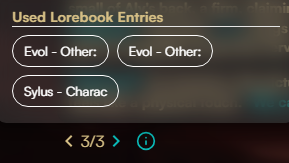
When a bot/chat has a Lorebook attached, it gets triggered through use of keywords set by the creator of the Lorebook. When these entries are triggered, you can view them by clicking the little i symbol at the bottom of the message. Up to 25 entries can be triggered at once, though only 15 will show here at one time.

If the entry has been marked as Viewable by the creator of the Lorebook, you can click on it to bring up that entry in a little window to read.

Your Messages

Down at the bottom of the page, you have your message box. This has a few different aspects to it.

Up Arrow: This opens up a little popup window that allows you to do a few different things. You can toggle on Fricc Mode (makes a bot more susceptible to NSFW content, more vulgar, and more aggressive), toggle the Backend Override if the bot has one, add different markdowns to your message, and add OOC instructions. If you want the OOC instructions to be used across multiple messages or regens, hit the Persist toggle.

Paperclip: You can send your own images to the bot! The bot will react to the contents of the image, so have fun playing with that!

Persona: The image over to the right, which will default to the CharSnap logo, is where you can change your persona for this specific chat. This is explained in more detail in the section below.

Sparkle: This is where you continue the roleplay! When you type something in the message box, the sparkle turns into an Arrow. You can click the arrow or hit enter in order to send your message. Don't want to write anything yourself? You can click the Sparkle and the bot will continue the roleplay by itself. Remember that you can change the "Act For You" settings within the Config if you want the bot to write for you!

Persona

At the bottom of the page, over by the send arrow, is an image of your persona. This is where you can easily edit and switch between personas during chat.

Username: This is what the bot will refer to you as in narration and when saying your name, unless they've given you a nickname.

Tagline: This is a field not read by the LLM. This is for you to be able to organize your personas, like "For Royal RP", "For Fantasy", etc.

Description: This is the details of your persona. You can do this in prose or list format, either is fine. There is no character limit, but keep in mind that this does stay in the context memory, so the more you have in here, the quicker you will run over the context memory. I also suggest not putting persona secrets in this box. For example, if you put in there that your persona is an assassin, the bot will most likely know you are an assassin even when they shouldn't.

Set Persona As Default: This is how you actually use the persona. Every chat will default to this persona unless you hit the "Character's Default" button, which is bot-wide, not Variant specific. If you have multiple personas, make sure you are switching the Default when jumping from chat to chat.

Side Panel

The side panel can be open and closed by hitting the little arrow on the far right of the screen.

On Mobile devices, you can bring this up by tapping the Bot's pfp up at the top left corner!

Character

Edit: You only see this if you are the creator of the bot. This button takes you to the full edit page of the bot, just as it would via the edit button on the My Characters page.

Quick: You only see this if you are the creator of the bot. This button pops up a quick edit menu, giving you access to most of the fields within the bot. For any changes to go into effect in your current chat, you'll have to save THEN refresh the page.

View Character: This allows you to view the bot's profile, just as you can via clicking on the bot card elsewhere on the site.

Configure Responses

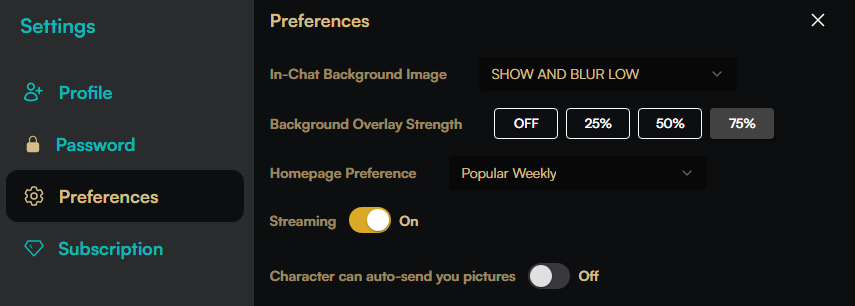
This brings up a window with multiple different tabs where you can configure your chat how you want it to work. You can also do this globally within the Profile Preferences. If you do it within the chat, it'll change only for that specific model you're currently using. Please make sure you read these carefully when choosing, as the default might not be to your taste!

Some models are more frustrating than others. If you notice the bot not adhering to whatever your Config settings are set to, you might have to use the AASP box within the chat. Something as simple as "Narration must be present tense" works wonders!

Quick Settings

Background: This lets you change the blur amount of the background splash art that was set by the creator of the bot. You can also turn it off completely. Please not that this is not currently bot-by-bot, but global.

Background Dimming: If you decided to keep the background splash, you can change how bright it is here.

Clear Chats: This lets you delete multiple messages at once. Turn this on and a small empty box will appear above the pfps of the bot and you. Click those, hit the delete button that appears next to the Send button at the bottom of the screen, and then toggle it back off.

Streaming: This lets you view the text as it's loading in. Turning this off gives you an empty box until it has finished the response, and then it will appear all at once.

Always Active System Prompts

This is a strong field that you can use to manipulate the chat, the scenario, and the memories. I do not recommend leaving a lot in here all the time, only put in what you need in that scene. If you notice the bot forgetting something such as a past conversation, the current location, what clothes they're wearing, etc, toss it in here for a few messages and then delete it once it's back on track.

This is a per-Variant box, not per-Chat. So if you're talking to Variant A but then switch to Variant B, this box will clear. But if you start a new chat on Variant A, the box will still have the same information as it previously had.

Make sure you hit "Set" once you apply any changes.

Recollections

Recollections work practically the same as Lorebooks, only that they're bot-specific, made entirely by you, and have the option to "Always On" an entry. You can read more about Recollections on the Recollectionspage!

Lorebooks

This is where you can view the Lorebooks that are natively attached to a bot, and add your own. You can add your own Lorebooks you have created, the process of which is explained on Lorebooks, or you can add any public ones! Each bot can have 3 Lorebooks natively attached + an additional slot just for you.

You can view the public lorebooks by turning on the toggle. Keep in mind that currently you cannot read or open a lorebook from this page to see its contents.

Assign Attachments

This is where you can assign attachments such as Scenarios, System Prompts, and UBJs to your chat. You can view how to do make them on Attachments.

Saved Conversations

This is where you can jump to all of your chats with this specific bot. This counts all Variants for the bot. The one with the latest sent message should appear at the top. The text is defaulted to whatever the last message was, but if you hit the edit button to the right, you can rename this to something more convenient. The current thread you're on will have "Active" next to it, and have a little highlight.

History Limit?

Basically this means that it's going to start forgetting older details. It's pretty recommended that you start a new chat if you notice that it's forgetting a lot or that the quality has degraded after this pop up. You can ask the bot in OOC: to give you a comprehensive summary of the plot so far, make sure to turn your output tokens up, then copy that, start a new chat, edit the greeting, and plop it in there.

Different tiers, and the models within those tiers, have different context memory. The context memory gets filled up by the permanent tokens before you even begin chatting: the description + personality + system prompts + always active system prompts fields of the bots, and your persona information.

The rest of it is filled by the messages sent, and is dependent on how long said messages are. So if you like the bot sending longer messages, you'll reach context limit sooner.

But you can click out of the pop up window and ignore it until you start noticing actual issues, and can try to mitigate the forgetting by, when you notice it forgets something, putting it in the always active system prompts box in chat, regen the message until it remembers, then deleting it from the always active system prompt box and continuing.

Important Note: Unused, rerolled AI messages do not take up context memory. Let us repeat that for you one more time: unused, rerolled chatbot messages do NOT take up context memory.

Generate Custom Images

If a bot has an Image Templates attached to it, you're able to generate images during chatting! This uses the context of the chat along with the template to give you a relevant image. Note that this can be NSFW, but if the template is very specific about the clothing, it's entirely possible that it won't remove the clothing in the generation.

To generate an image within the chat using context, you want to click the picture frame icon between the Persona Image and the Send button. This will only be lit up if you have sent at least one message in the chat.

Alternatively, you are able to use the actual Generate Custom Images button up in the top right, but this takes you to the Image Generation page on Charsnap with the entire template to play with. Generating images here will not use the chat context.

If the larger box beneath the messages annoys you, you can turn it off on the sidebar, "Auto Pictures", or globally via your account preferences, "Character can auto-send you pictures".

How Does the Bot Think Before Responding to Your Text?

You must be thinking about what steps the bot goes through before writing their response to you. Did we guess right? Well, we have an answer. See below.

Order (top to bottom) in which the bot thinks.

Before responding, the character/bot will process some essential, existing information before responding to your message. In this specific order, the bot will first think about the dev's backend chatting model prompts and the {{user}} + creator-defined system prompts. Essentially, these are instructions that the dev, bot creator, or you (if you've written any using the Always Active System Prompt box or Attachments) have made for the bot to follow. Those take priority over everything else.

Next comes the character information, the bot's guts. Whatever the bot creator has written into the character's definition will be written out next, the bot always carefully considers what is in it's personality + description before writing out its reply.

After that comes the scenario, the situation that you or the creator wrote in there. The AI will do its best to keep all its responses relevant to the circumstance you are putting them in. Following that comes the example messages, if the bot creator wrote any, then they will do their best to follow the writing style + dialogue that they put in there.

In between the example messages and {{char}}'s first message is {{user}}'s persona information. Whatever information you put in for yourself will be considered by the AI in this area. Although it is not higher in the list, don't fret. There's a special sauce that helps your persona remain relevant in chat and in {{char}}'s responses (history length and all).

  • Paraphrased "Sauce" information (from dev themself):

    • The developer has a bit of in-between memory updates for your persona and character progression so it can help the AI stay in character. This is invisible, but it is also how some of you can have 1000+ messages and your chars still remain somewhat in-character.

Going further down the list leaves {{char}}'s first message (the first thing you see when you open a chat with a bot), again, they're following the existing scenario that they were put in. Then, if you, the {{user}} decides to respond, the character will process your reply too and figure out how to appropriately reply to your actions/dialogue.

Now we're at Lorebooks. If the {{char}} has an assigned Lorebook, a very brainy AI will go through all the Lorebook information and pick out what info is befitting of the roleplay depending whether {{user}}'s reply has brought up something relevant one of their entries. From here, it continues to make sure their response to the RP is as relevant to the conversation possible.

We made it to the end: Character second message generated with lorebook entries (again, IF the character has an assigned lorebook). In other words, this is the response your character is generating after reading your ({{user}}) reply. Same process continues from here on. Woohoo! Now you the steps of how the AI thinks before writing its response.

Last updated